> For the complete documentation index, see [llms.txt](https://docs.discordtotelegram.com/llms.txt). Markdown versions of documentation pages are available by appending `.md` to page URLs; this page is available as [Markdown](https://docs.discordtotelegram.com/fundamentals/blacklist-create-and-management.md).
# Blacklist: Create And Management
***
## **Blacklist: Block Messages Based on Words, Patterns, or Users**
The **Blacklist** feature allows you to define a list of blocked users, groups, or channels whose messages will not be forwarded. This ensures that unwanted content from specific sources is excluded from the forwarding process, helping you maintain control and relevance in message flow.
***
## **How It Works**
* When you add a user, group, or channel to the **Blacklist**, their messages will be blocked.
* Messages from sources **on the Blacklist** will not be forwarded.
* If no Blacklist is set up, messages from all sources will be forwarded (unless other filters like Whitelist are applied).
***
## **1. Accessing the Blacklist Feature**
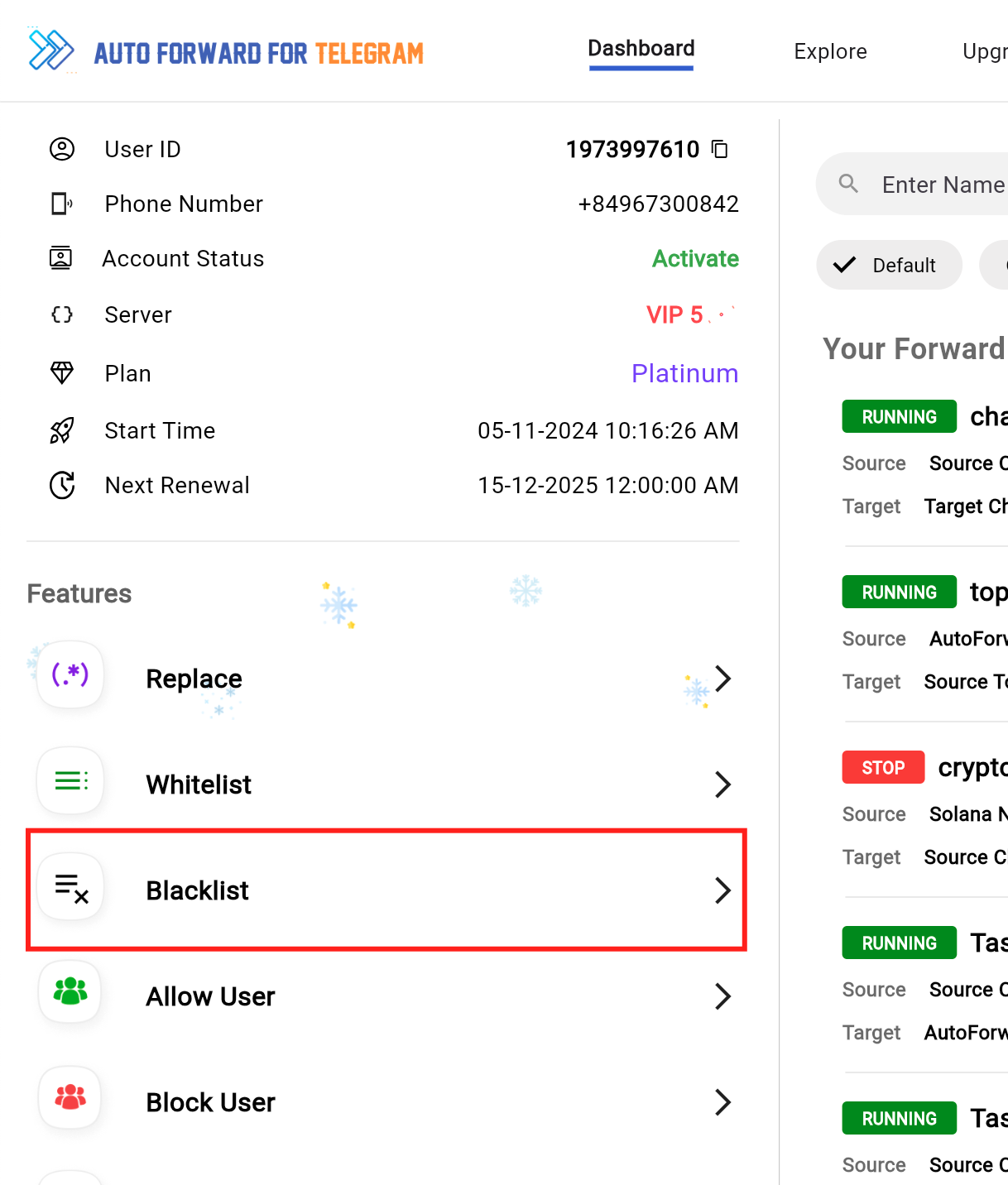
1. **Log in to the** [**Auto Forward Web**](https://web.discordtotelegram.com) **Dashboard.**
2. In the left-hand menu under **Features**, click on **Blacklist**.
***
#### **Next Step**
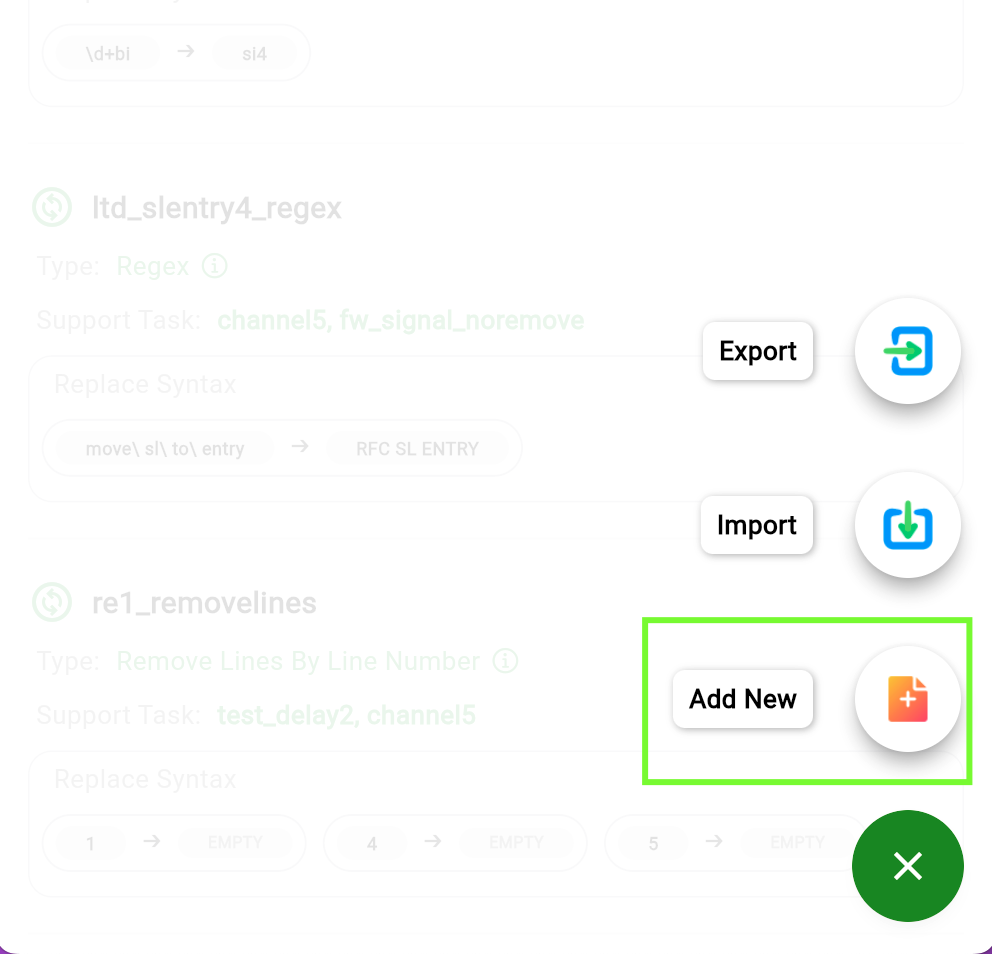
Tap on the **Add New** button to create a new Blacklist rule.
***
## **2. Create Blacklist Rule**
#### **Options for Blacklist Type**
You can choose one of the following Blacklist Types:
1. **Basic**: Add simple words or phrases to the Blacklist.
2. **Regex**: Use Regular Expressions (Regex) for advanced filtering.
3. **Blacklist By User**: Block messages from specific users.
***
#### **Steps to Create a Blacklist Rule**
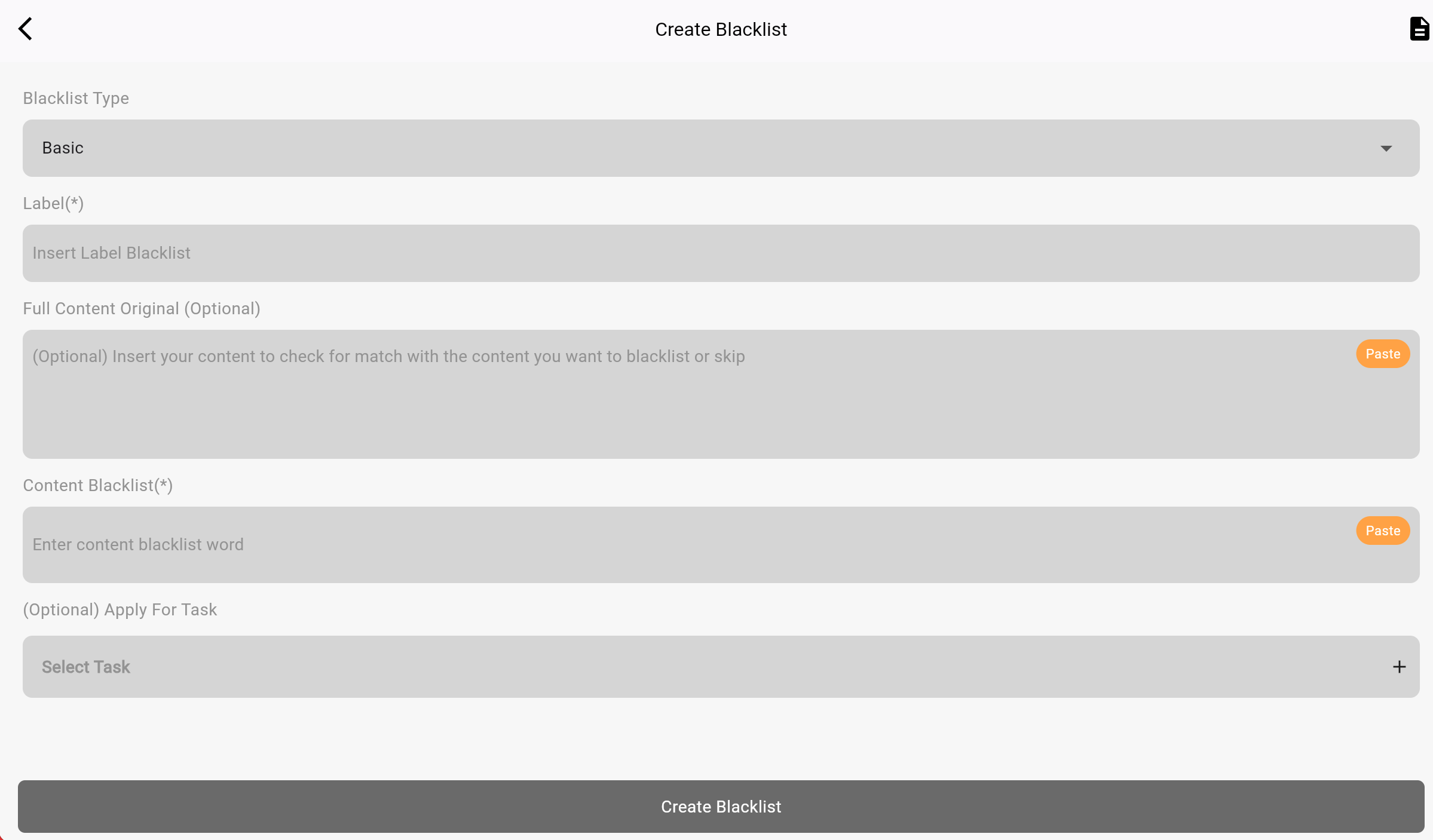
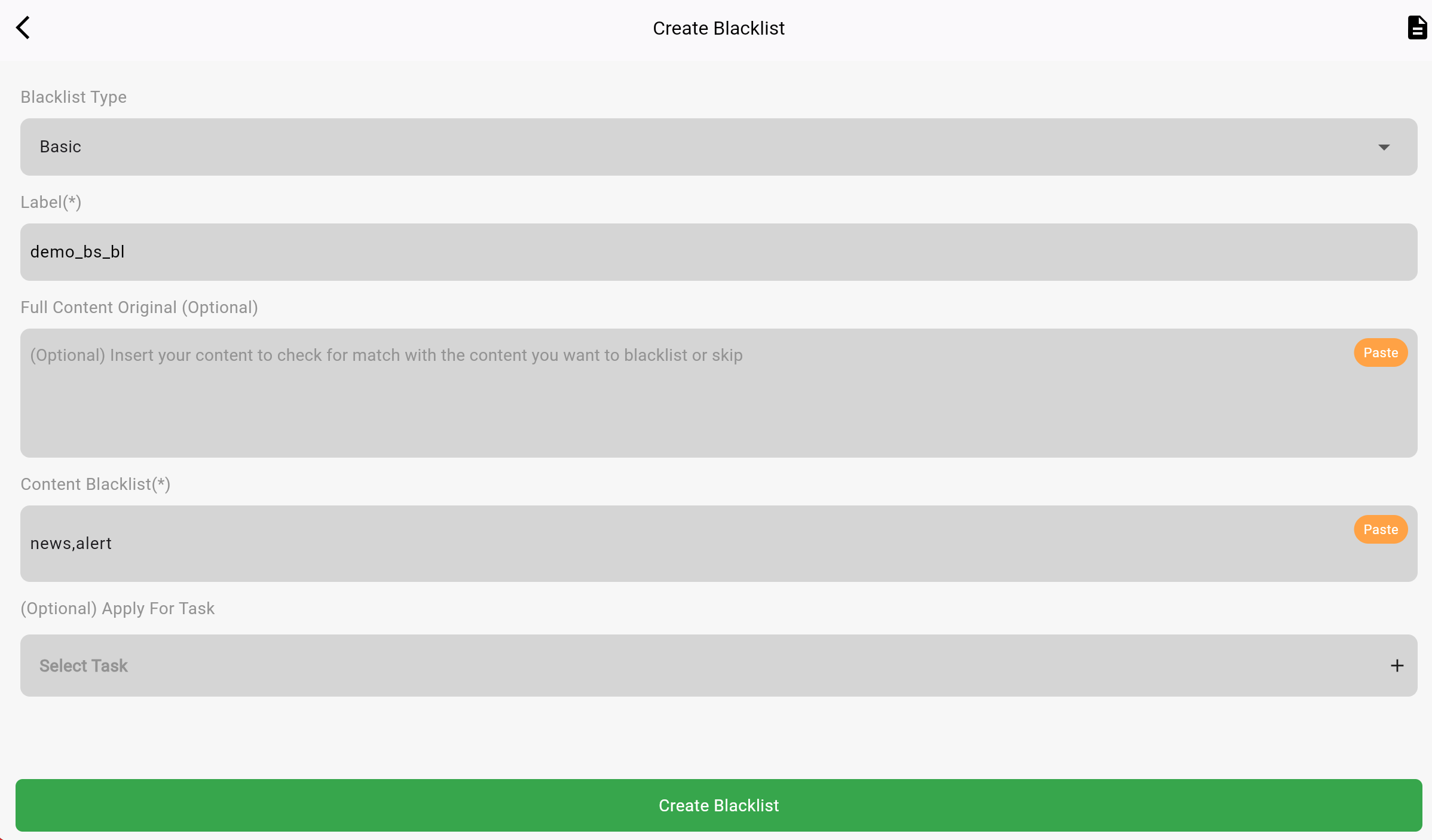
**1. Enter a Label**
* Add a Label to identify your Blacklist rule.
* **Example**: `block_words`, `remove_links`.
**2. Select Blacklist Type**
* **Basic**: Enter one or more words (separate them with commas).
* **Example**: `spam,ad,unwanted`.
* **Regex**: Use a regex pattern for advanced filtering.
* **Example**: `\bunwanted\b` (matches the word "unwanted" fully).
* **Blacklist By User**: Add usernames or user IDs to block specific senders.
**3. Full Content (Optional)**
* Paste the original content to test or match against the rule.
**4. Apply to Tasks (Optional)**
* In the **Apply For Task** field, select a specific task if needed.
**5. Save the Rule**
* Tap **Create Blacklist** to save and activate the rule.
***
## **3. Blacklist Types**
### **1. Basic Blacklist**
The **Basic Blacklist** allows you to block messages containing specific words or phrases.
**Steps to Use**
1. Go to **Blacklist** → Tap **Add New**.
2. Select **Basic** in the **Blacklist Type** dropdown.
3. Add the words/phrases to the **Content Blacklist** field.
4. Tap **Create Blacklist** to save.
***
**Example Scenarios**
1. **Block messages containing "spam" or "ad"**
* **Content Blacklist**: `spam,ad`
* **Example Message**:
```
This is a spam message with an ad.
```
* **Result**: Blocked ❌
2. **Block messages containing "promotion" or "unsubscribe"**
* **Content Blacklist**: `promotion,unsubscribe`
* **Example Message**:
```
Check out our latest promotion! Unsubscribe anytime.
```
* **Result**: Blocked ❌
***
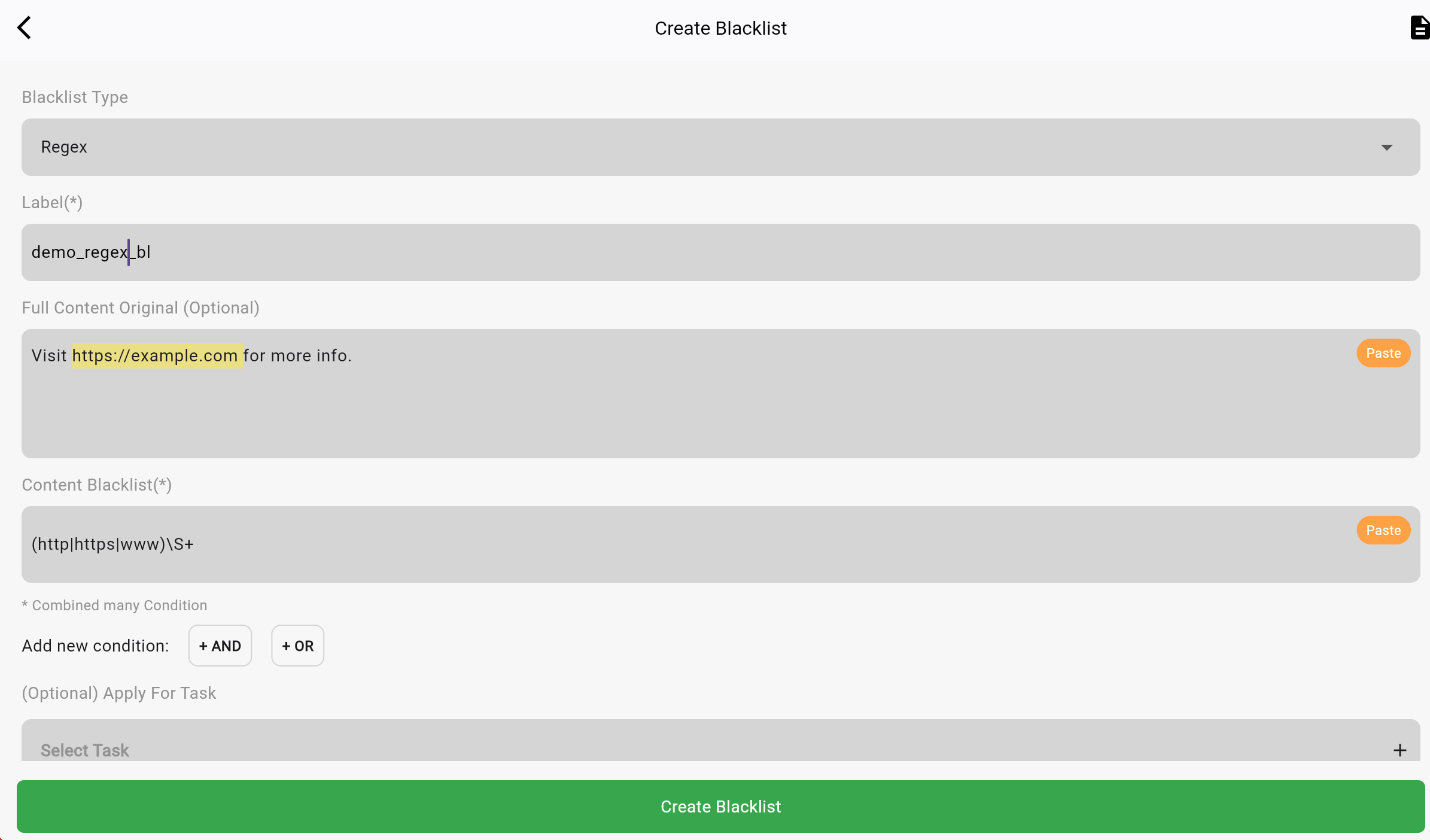
### **2. Regex Blacklist**
The **Regex Blacklist** is used for advanced matching. It allows you to use **Regular Expressions** to block messages based on patterns.
**Steps to Use**
1. Go to **Blacklist** → Tap **Add New**.
2. Select **Regex** in the **Blacklist Type** dropdown.
3. Enter the **Regex pattern** in the **Content Blacklist** field.
4. Tap **Create Blacklist** to save.
***
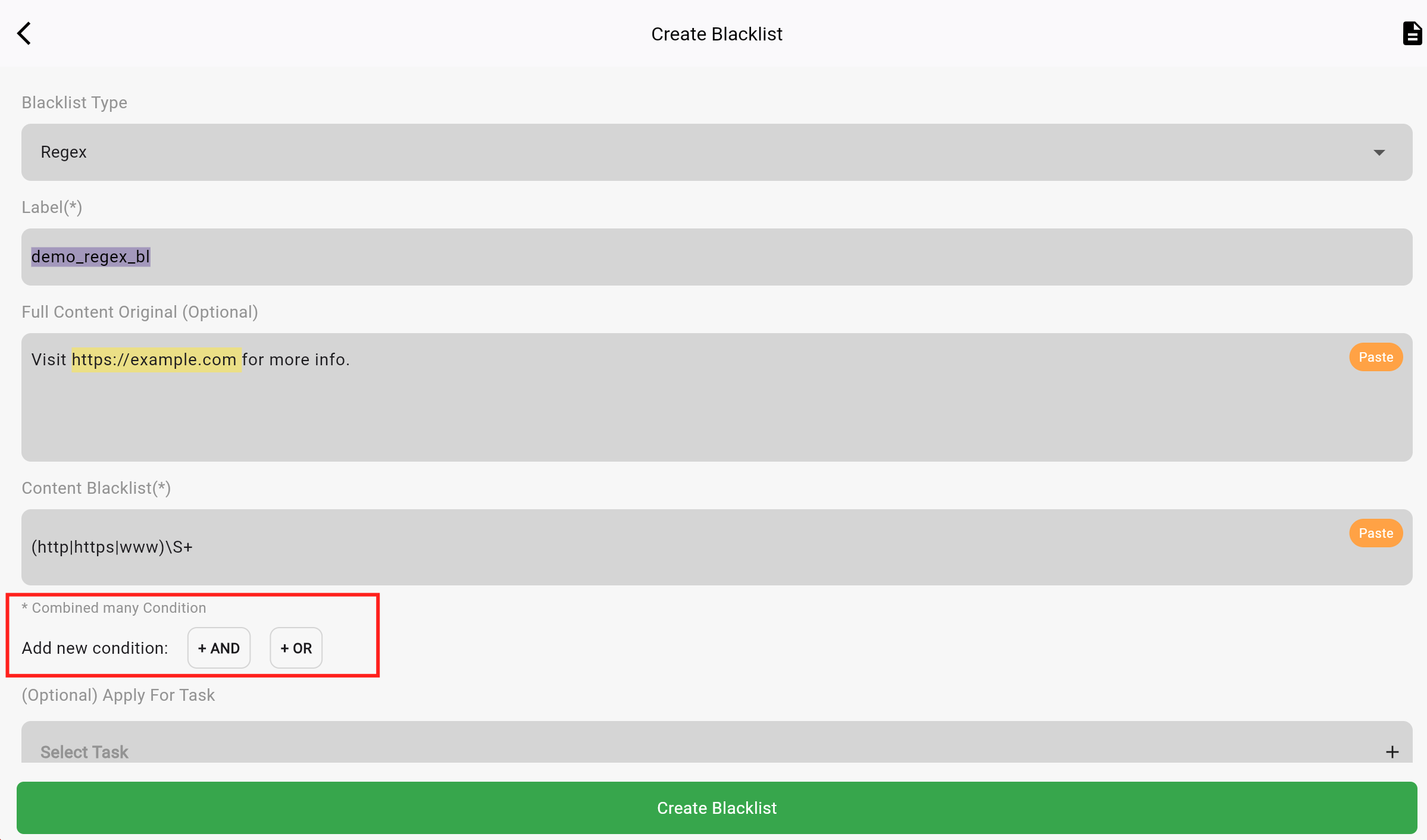
**Combine Conditions with AND/OR**
* **AND Condition**: All specified conditions must be met.
* **OR Condition**: Any one of the specified conditions must be met.
#### **What are AND and OR Conditions?**
1. **AND Condition**:
* Ensures that all specified conditions must be met for a message to be blocked.
* Example: A message must contain **"buy"** **and** **"cheap"** to be blocked.
2. **OR Condition**:
* Ensures that any one of the specified conditions is met for a message to be blocked.
* Example: A message must contain **"spam"** **or** **"ad"** to be blocked.
#### **How to Add AND/OR Conditions**
1. **Add an AND Condition**:
* Tap the **+ AND** button to add another condition that must also be met.
* **Example**: After entering `buy`, add `cheap`.
**Result**: Messages containing both **"buy"** **and** **"cheap"** will be blocked.
2. **Add an OR Condition**:
* Tap the **+ OR** button to add another condition where either can be met.
* **Example**: After entering `spam`, add `ad`.
**Result**: Messages containing either **"spam"** **or** **"ad"** will be blocked.
***
**Example Scenarios**
1. **Block messages containing links**
* **Regex Pattern**:
```regex
(http|https|www)\S+
```
* **Example Message**:
```
Visit https://example.com for more info.
```
* **Result**: Blocked ❌
2. **Block messages containing "scam" or "fraud"**
* **Regex Pattern**:
```regex
(scam|fraud)
```
* **Example Message**:
```
This is a fraud alert.
```
* **Result**: Blocked ❌
3. **Block messages containing both "buy" and "cheap"**
* **Regex Pattern**:
```regex
^(?=.*\bbuy\b)(?=.*\bcheap\b).*
```
* **Example Message**:
```
Buy this product for a cheap price!
```
* **Result**: Blocked ❌
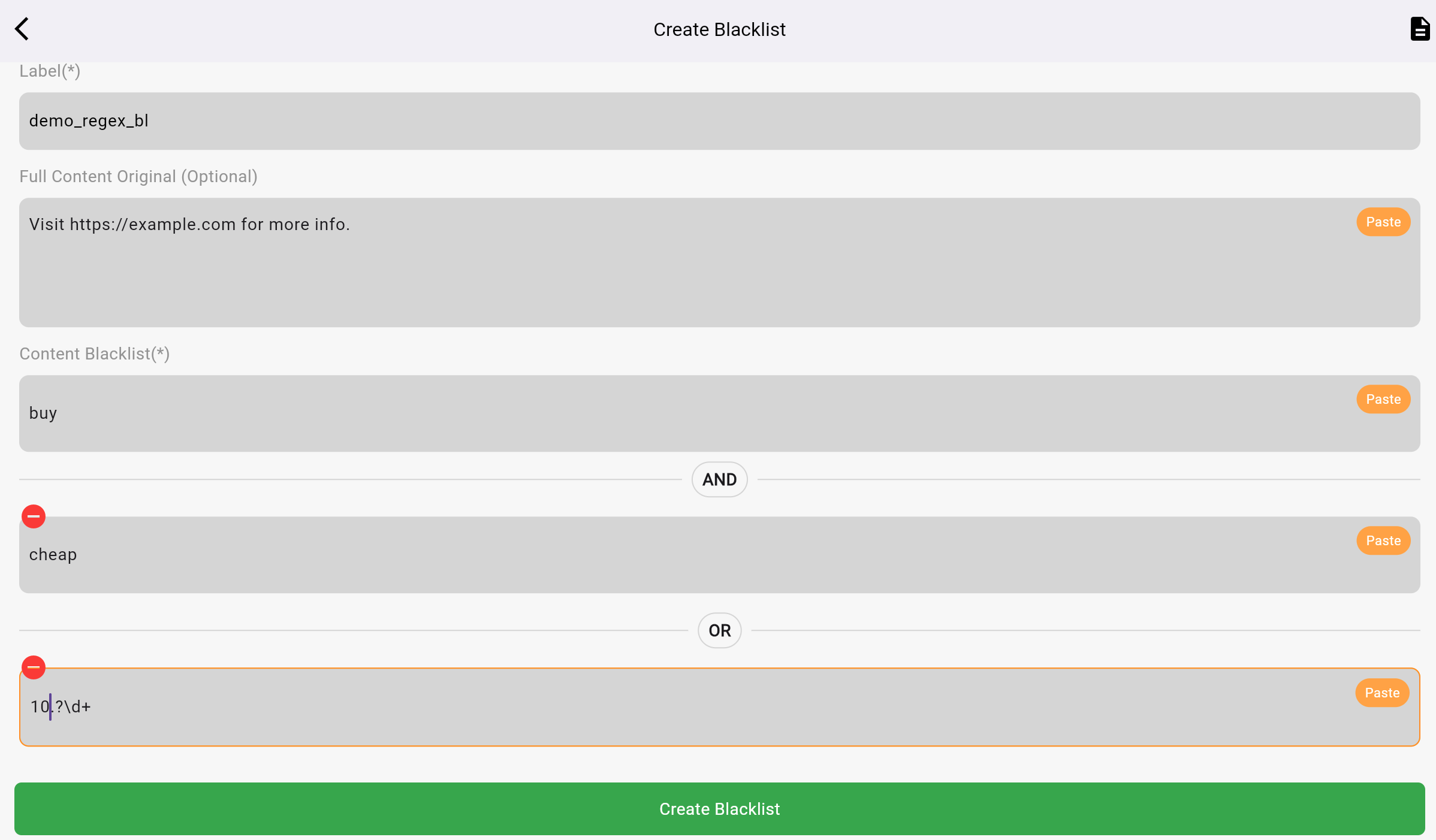
#### **Example Scenarios Combine Multiple AND/OR Conditions**
1. **Block Messages Containing Both "buy" and "cheap"**
* **Condition**:
* **Content Blacklist**: `buy`
* Add Condition: **+ AND** → `cheap`
* **Example Message**:
```kotlin
kotlinSao chép mãBuy this product for a cheap price!
```
* **Result**: Blocked ❌
2. **Block Messages Containing Either "spam" or "ad"**
* **Condition**:
* **Content Blacklist**: `spam`
* Add Condition: **+ OR** → `ad`
* **Example Message**:
```csharp
csharpSao chép mãThis is a spam message with an ad.
```
* **Result**: Blocked ❌
3. **Combine Multiple AND/OR Conditions**
* **Condition**:
* **Content Blacklist**: `buy`
* Add Condition: **+ AND** → `cheap`
* Add Condition: **+ OR** → `scam`
* **Example Messages**:
* `Buy this product for a cheap price!`: Blocked ❌
* `This is a scam message`: Blocked ❌
* `Buy now`: Not Blocked ✅
***
### **3. Blacklist By User (Platinum Plan Only)**
The **Blacklist By User** feature allows you to block messages from specific users, channels, or groups.
***
**How to Use Blacklist By User**
1. Use the **`/getid`** command to find the **User ID** of the sender.
* **Example**:
```
/getid
➡️ User ID: 123456789
```
2. Go to **Dashboard** → Tap on **Blacklist** → **Add New**.
3. Select **Blacklist By User** as the Blacklist Type.
4. Enter the **User ID** (e.g., `123456789`) or the **Username** (e.g., `@blocked_user`).
5. Tap **Create Blacklist** to save the rule.
***
**Example Scenario**
* **Use Case**: Block messages from a spammer.
* **Content Blacklist**: `123456789` or `@spammer_user`.
* **Result**: Messages from the user will be blocked.
***
### **4. Apply/Disable Blacklist For a Task**
#### **Steps**
1. From the **Dashboard**, select the **Blacklist** feature.
2. Locate the Blacklist rule you want to manage.
3. Tap on the rule to open the **popup window**.
#### **Options**
1. **Activate/Deactivate For Task**: Enable or disable the rule for a specific task.
2. **Apply For All Tasks**: Apply the rule globally across all tasks.
3. **Edit Blacklist**: Update keywords, regex patterns, or user IDs.
4. **Delete**: Permanently remove the rule.
***
### **5. Tips for Using Blacklist**
* Use **Basic** for simple word-based filtering.
* Use **Regex** for complex patterns like URLs, mentions, or phrases.
* Regularly review and update Blacklist rules for optimal performance.
* Test Regex patterns using [regex101.com](https://regex101.com/).
***
### **Why Use Blacklist?**
* Prevents unwanted content from being forwarded.
* Blocks spam and irrelevant messages.
* Ensures better control over message forwarding.
***
With the **Blacklist** feature, you can effectively block messages based on words, patterns, or specific senders, ensuring only relevant content is forwarded. 🚀